forked from cerc-io/ipld-eth-server

327 lines
7.2 KiB
Markdown
327 lines
7.2 KiB
Markdown
Stack Up
|
|
========
|
|
|
|
Stack Up is a simple deployment tool that performs given set of commands on multiple hosts in parallel. It reads Supfile, a YAML configuration file, which defines networks (groups of hosts), commands and targets.
|
|
|
|
# Demo
|
|
|
|
[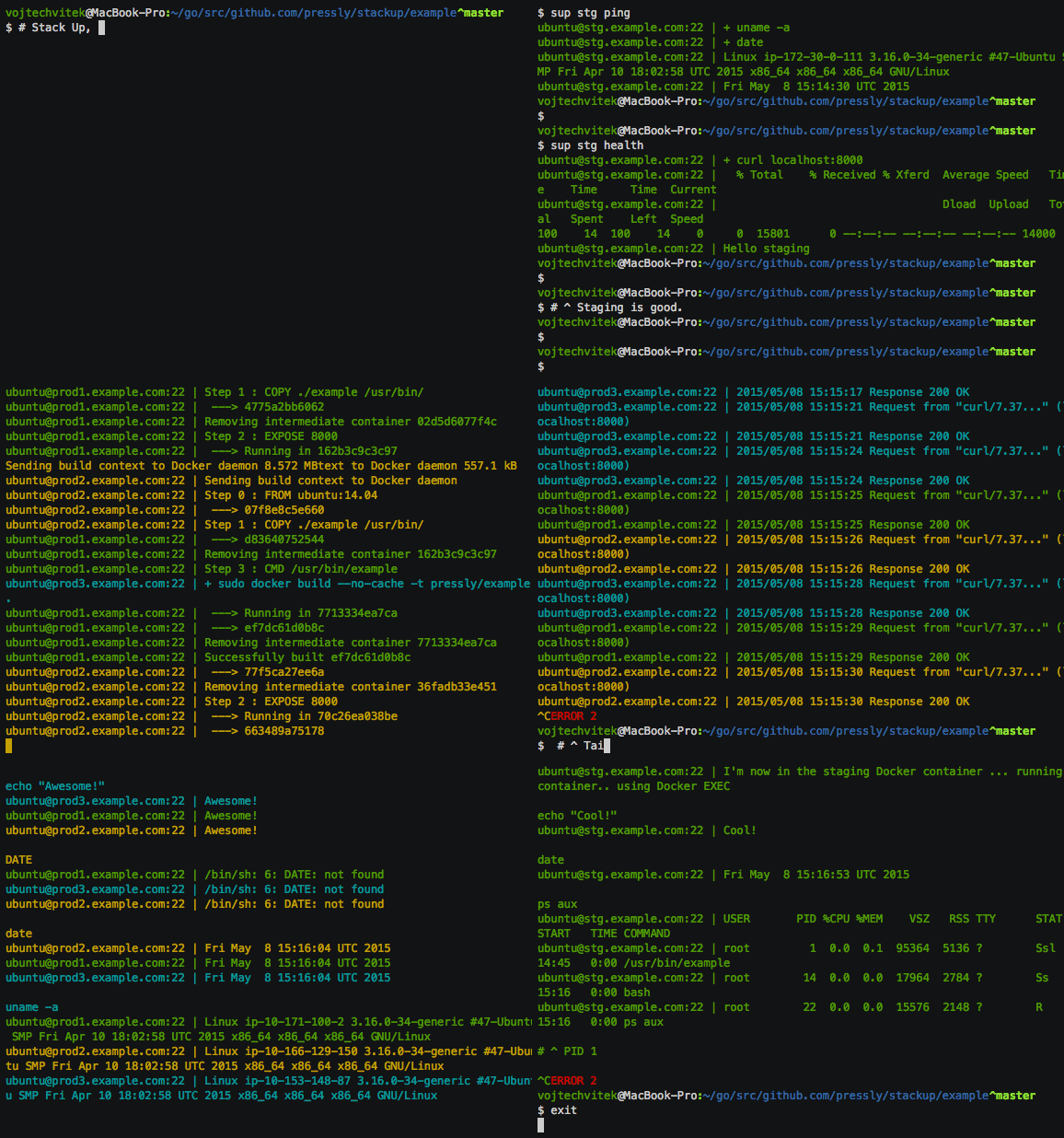](https://asciinema.org/a/19742?autoplay=1)
|
|
|
|
*Note: Demo is based on [this example Supfile](./example/Supfile).*
|
|
|
|
# Installation
|
|
|
|
$ go get -u github.com/pressly/sup/cmd/sup
|
|
|
|
# Usage
|
|
|
|
$ sup [OPTIONS] NETWORK COMMAND [...]
|
|
|
|
### Options
|
|
|
|
| Option | Description |
|
|
|-------------------|----------------------------------|
|
|
| `-f Supfile` | Custom path to Supfile |
|
|
| `-e`, `--env=[]` | Set environment variables |
|
|
| `--only REGEXP` | Filter hosts matching regexp |
|
|
| `--except REGEXP` | Filter out hosts matching regexp |
|
|
| `--debug`, `-D` | Enable debug/verbose mode |
|
|
| `--disable-prefix`| Disable hostname prefix |
|
|
| `--help`, `-h` | Show help/usage |
|
|
| `--version`, `-v` | Print version |
|
|
|
|
## Network
|
|
|
|
A group of hosts.
|
|
|
|
```yaml
|
|
# Supfile
|
|
|
|
networks:
|
|
production:
|
|
hosts:
|
|
- api1.example.com
|
|
- api2.example.com
|
|
- api3.example.com
|
|
staging:
|
|
# fetch dynamic list of hosts
|
|
inventory: curl http://example.com/latest/meta-data/hostname
|
|
```
|
|
|
|
`$ sup production COMMAND` will run COMMAND on `api1`, `api2` and `api3` hosts in parallel.
|
|
|
|
## Command
|
|
|
|
A shell command(s) to be run remotely.
|
|
|
|
```yaml
|
|
# Supfile
|
|
|
|
commands:
|
|
restart:
|
|
desc: Restart example Docker container
|
|
run: sudo docker restart example
|
|
tail-logs:
|
|
desc: Watch tail of Docker logs from all hosts
|
|
run: sudo docker logs --tail=20 -f example
|
|
```
|
|
|
|
`$ sup staging restart` will restart all staging Docker containers in parallel.
|
|
|
|
`$ sup production tail-logs` will tail Docker logs from all production containers in parallel.
|
|
|
|
### Serial command (a.k.a. Rolling Update)
|
|
|
|
`serial: N` constraints a command to be run on `N` hosts at a time at maximum. Rolling Update for free!
|
|
|
|
```yaml
|
|
# Supfile
|
|
|
|
commands:
|
|
restart:
|
|
desc: Restart example Docker container
|
|
run: sudo docker restart example
|
|
serial: 2
|
|
```
|
|
|
|
`$ sup production restart` will restart all Docker containers, two at a time at maximum.
|
|
|
|
### Once command (one host only)
|
|
|
|
`once: true` constraints a command to be run only on one host. Useful for one-time tasks.
|
|
|
|
```yaml
|
|
# Supfile
|
|
|
|
commands:
|
|
build:
|
|
desc: Build Docker image and push to registry
|
|
run: sudo docker build -t image:latest . && sudo docker push image:latest
|
|
once: true # one host only
|
|
pull:
|
|
desc: Pull latest Docker image from registry
|
|
run: sudo docker pull image:latest
|
|
```
|
|
|
|
`$ sup production build pull` will build Docker image on one production host only and spread it to all hosts.
|
|
|
|
### Local command
|
|
|
|
Runs command always on localhost.
|
|
|
|
```yaml
|
|
# Supfile
|
|
|
|
commands:
|
|
prepare:
|
|
desc: Prepare to upload
|
|
local: npm run build
|
|
```
|
|
|
|
### Upload command
|
|
|
|
Uploads files/directories to all remote hosts. Uses `tar` under the hood.
|
|
|
|
```yaml
|
|
# Supfile
|
|
|
|
commands:
|
|
upload:
|
|
desc: Upload dist files to all hosts
|
|
upload:
|
|
- src: ./dist
|
|
dst: /tmp/
|
|
```
|
|
|
|
### Interactive Bash on all hosts
|
|
|
|
Do you want to interact with multiple hosts at once? Sure!
|
|
|
|
```yaml
|
|
# Supfile
|
|
|
|
commands:
|
|
bash:
|
|
desc: Interactive Bash on all hosts
|
|
stdin: true
|
|
run: bash
|
|
```
|
|
|
|
```bash
|
|
$ sup production bash
|
|
#
|
|
# type in commands and see output from all hosts!
|
|
# ^C
|
|
```
|
|
|
|
Passing prepared commands to all hosts:
|
|
```bash
|
|
$ echo 'sudo apt-get update -y' | sup production bash
|
|
|
|
# or:
|
|
$ sup production bash <<< 'sudo apt-get update -y'
|
|
|
|
# or:
|
|
$ cat <<EOF | sup production bash
|
|
sudo apt-get update -y
|
|
date
|
|
uname -a
|
|
EOF
|
|
```
|
|
|
|
### Interactive Docker Exec on all hosts
|
|
|
|
```yaml
|
|
# Supfile
|
|
|
|
commands:
|
|
exec:
|
|
desc: Exec into Docker container on all hosts
|
|
stdin: true
|
|
run: sudo docker exec -i $CONTAINER bash
|
|
```
|
|
|
|
```bash
|
|
$ sup production exec
|
|
ps aux
|
|
strace -p 1 # trace system calls and signals on all your production hosts
|
|
```
|
|
|
|
## Target
|
|
|
|
Target is an alias for multiple commands. Each command will be run on all hosts in parallel,
|
|
`sup` will check return status from all hosts, and run subsequent commands on success only
|
|
(thus any error on any host will interrupt the process).
|
|
|
|
```yaml
|
|
# Supfile
|
|
|
|
targets:
|
|
deploy:
|
|
- build
|
|
- pull
|
|
- migrate-db-up
|
|
- stop-rm-run
|
|
- health
|
|
- slack-notify
|
|
- airbrake-notify
|
|
```
|
|
|
|
`$ sup production deploy`
|
|
|
|
is equivalent to
|
|
|
|
`$ sup production build pull migrate-db-up stop-rm-run health slack-notify airbrake-notify`
|
|
|
|
# Supfile
|
|
|
|
See [example Supfile](./example/Supfile).
|
|
|
|
### Basic structure
|
|
|
|
```yaml
|
|
# Supfile
|
|
---
|
|
version: 0.4
|
|
|
|
# Global environment variables
|
|
env:
|
|
NAME: api
|
|
IMAGE: example/api
|
|
|
|
networks:
|
|
local:
|
|
hosts:
|
|
- localhost
|
|
staging:
|
|
hosts:
|
|
- stg1.example.com
|
|
production:
|
|
hosts:
|
|
- api1.example.com
|
|
- api2.example.com
|
|
|
|
commands:
|
|
echo:
|
|
desc: Print some env vars
|
|
run: echo $NAME $IMAGE $SUP_NETWORK
|
|
date:
|
|
desc: Print OS name and current date/time
|
|
run: uname -a; date
|
|
|
|
targets:
|
|
all:
|
|
- echo
|
|
- date
|
|
```
|
|
|
|
### Default environment variables available in Supfile
|
|
|
|
- `$SUP_HOST` - Current host.
|
|
- `$SUP_NETWORK` - Current network.
|
|
- `$SUP_USER` - User who invoked sup command.
|
|
- `$SUP_TIME` - Date/time of sup command invocation.
|
|
- `$SUP_ENV` - Environment variables provided on sup command invocation. You can pass `$SUP_ENV` to another `sup` or `docker` commands in your Supfile.
|
|
|
|
# Running sup from Supfile
|
|
|
|
Supfile doesn't let you import another Supfile. Instead, it lets you run `sup` sub-process from inside your Supfile. This is how you can structure larger projects:
|
|
|
|
```
|
|
./Supfile
|
|
./database/Supfile
|
|
./services/scheduler/Supfile
|
|
```
|
|
|
|
Top-level Supfile calls `sup` with Supfiles from sub-projects:
|
|
```yaml
|
|
restart-scheduler:
|
|
desc: Restart scheduler
|
|
local: >
|
|
sup -f ./services/scheduler/Supfile $SUP_ENV $SUP_NETWORK restart
|
|
db-up:
|
|
desc: Migrate database
|
|
local: >
|
|
sup -f ./database/Supfile $SUP_ENV $SUP_NETWORK up
|
|
```
|
|
|
|
# Common SSH Problem
|
|
|
|
if for some reason sup doesn't connect and you get the following error,
|
|
|
|
```bash
|
|
connecting to clients failed: connecting to remote host failed: Connect("myserver@xxx.xxx.xxx.xxx"): ssh: handshake failed: ssh: unable to authenticate, attempted methods [none publickey], no supported methods remain
|
|
```
|
|
|
|
it means that your `ssh-agent` dosen't have access to your public and private keys. in order to fix this issue, follow the below instructions:
|
|
|
|
- run the following command and make sure you have a key register with `ssh-agent`
|
|
|
|
```bash
|
|
ssh-add -l
|
|
```
|
|
|
|
if you see something like `The agent has no identities.` it means that you need to manually add your key to `ssh-agent`.
|
|
in order to do that, run the following command
|
|
|
|
```bash
|
|
ssh-add ~/.ssh/id_rsa
|
|
```
|
|
|
|
you should now be able to use sup with your ssh key.
|
|
|
|
|
|
# Development
|
|
|
|
fork it, hack it..
|
|
|
|
$ make build
|
|
|
|
create new Pull Request
|
|
|
|
We'll be happy to review & accept new Pull Requests!
|
|
|
|
# License
|
|
|
|
Licensed under the [MIT License](./LICENSE).
|